“It’s not possible.”
That’s what Branko told me when I asked if I could connect my existing KNX smart home system to Apple Home. He said the system was too old, and that upgrading it would mean ripping out hardware and buying expensive new servers for thousands of Euros.
I didn’t believe him. I suspected he wanted to gatekeep the technology to keep charging service fees, or that he didn’t know it was possible.
I decided to prove him wrong. Over a weekend I went from a locked-down system to controlling the house with Siri, using a spare Raspberry Pi and some Python. I reverse-engineered a 15-year-old Magiesta system to do it.
The hardware dead end
My home runs on KNX, a standard industrial protocol. Usually you can buy a generic KNX-to-IP interface, plug it in, and be done. I opened my electrical cabinet to see what I was working with.
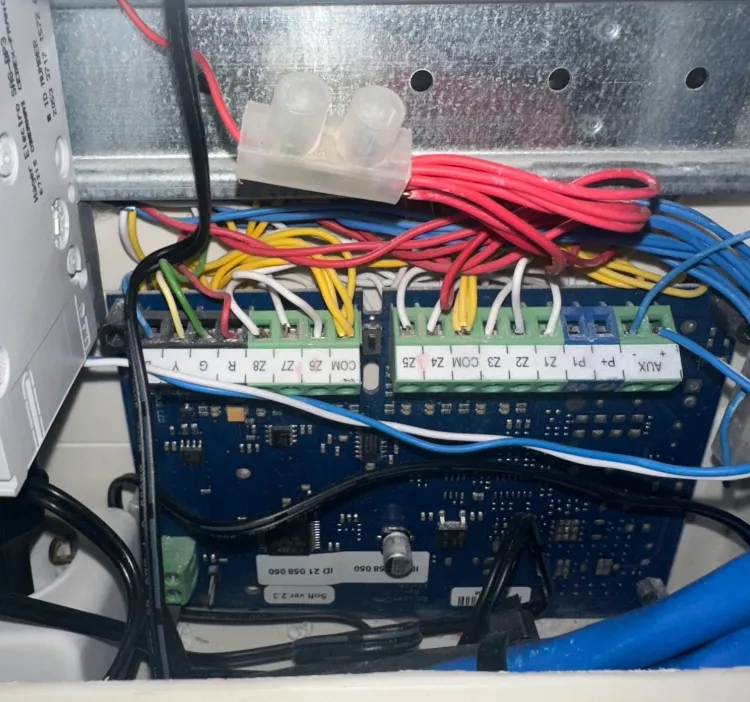
I found a Raspberry Pi 2 running Magiesta. It wasn’t using a standard USB/IP gateway. It had a custom expansion board wired directly to the physical wall switches, inputs Z1, Z2, and the rest.
If I unplugged this old Pi to replace it with a modern one, the physical light switches would stop working. I was hardware-locked. I couldn’t touch the wires.
I had to find a software solution.
The side door
If I couldn’t replace the hardware, I had to talk to it. I scanned the device on my network. Port 3671, the standard KNX port, was closed. The software was hogging it. Port 22 for SSH and port 8080 for the web UI were open.
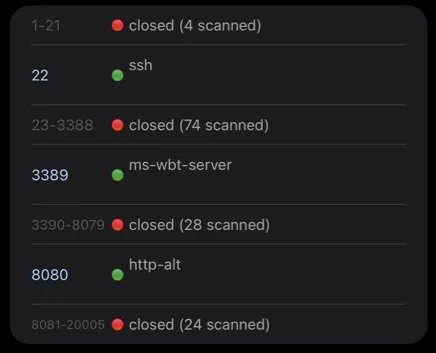
The SSH attempt
It was a Raspberry Pi, so I tried the front door first. I opened a terminal and tried the defaults: ssh pi@192.168.x.x
I tried password raspberry. Access Denied. I tried root / magiesta. Access Denied. I tried admin / admin. Access Denied.
Branko had secured the operating system. I wasn’t getting in that way. Surprising.
The web traffic
I moved on to port 8080. I opened the Magiesta web interface in Chrome, hit F12 for Developer Tools, and watched the Network tab while I clicked a light button in the web app.
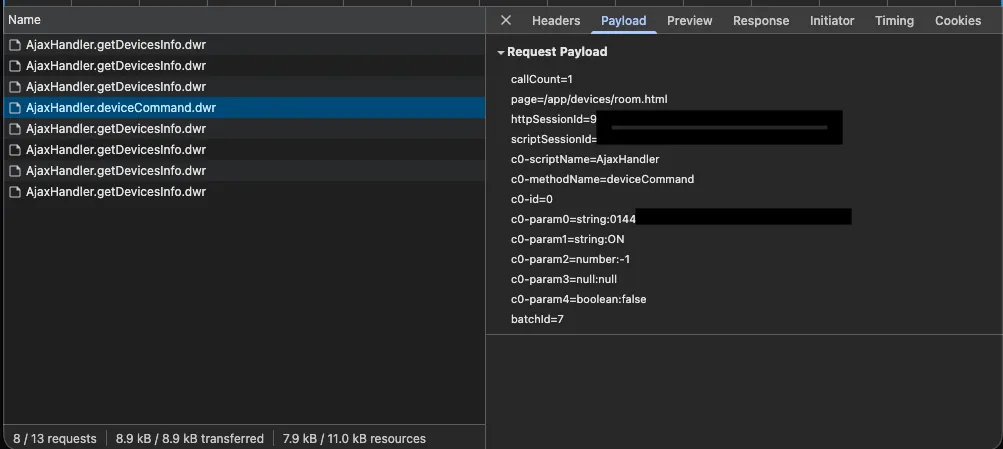
I caught a request. It wasn’t POST /api/light/on. It was a request to a file called AjaxHandler.deviceCommand.dwr with a payload that looked like this:
callCount=1
scriptSessionId=6AD692C3A8463EE...
c0-scriptName=AjaxHandler
c0-methodName=deviceCommand
c0-param0=string:4092deba-b26b-4bae...
c0-param1=string:ON
A Google search said this was DWR, Direct Web Remoting. Mid-2000s Java tech that lets JavaScript call Java functions on the server. It’s ugly, but it’s just HTTP.
I copied that request as a cURL command into my Mac’s terminal, hit Enter, and… click. The living room light turned on.
I had a way in.
Reverse engineering with Python
Turning a light on was easy. The UUIDs were not.
Every light switch had a random ID like 4092deba-b26b-4bae.... My house has 50+ devices. Clicking every button in the web interface to capture its ID would have taken hours and been prone to errors.
I needed to automate the discovery.
Cracking the login
I had to get in first. The HTML source of the login page showed the form submitted to j_acegi_security_check. That meant an old version of Spring Security. I wrote a Python function using the requests library to spoof a browser login and handle the session cookies automatically.
The un-minified JavaScript
I started digging into the JavaScript files the server was sending to the browser, specifically engine.js and AjaxHandler.js.
The code wasn’t minified.
Modern web code is usually compressed into an unreadable mess to save bandwidth and hide the internals. This system was from 2005. The files were readable, comments and all. I could see the whole API.
I scrolled through AjaxHandler.js and found a function called getRoomByOrder.
AjaxHandler.getRoomByOrder = function(p0, p1, callback) { ... }The logic was simple. The server indexed rooms by numbers, 0, 1, 2, and up. I didn’t need to know the IDs. I could ask for room 1, then room 2, and keep going.
The loop
I wrote a loop in Python to brute-force the house structure:
all_data = {}

# Loop through indexes 0 to 20 to find every room in the house
for i in range(20):
    # Ask the server: "Does Room #i exist?"
    room_uuid = get_room_by_order(session, i)

    if room_uuid:
        # If yes, download every light and blind in that room
        room_devs = get_devices_info(session, room_uuid)
        all_data.update(room_devs)
        print(f"Found Room {i}: {len(room_devs)} devices")
I ran the script. It cycled through the numbers and printed a complete inventory of my entire home, UUIDs, names, and types.
Parsing the garbage
The server returned data in raw DWR JavaScript format (s0.id="..."; s0.value="ON";), not JSON. I used Python regular expressions to strip out the syntax and merge the IDs and values into a clean dictionary.
# Extracting the raw data into a clean dictionary
for match in re.finditer(r'(s\d+)\.(humanValue|value)\s*=\s*"?([^";]+)"?', r.text):
    var_name = match.group(1)
    value = match.group(3)
    devices[uuid] = str(value).replace('"', '')
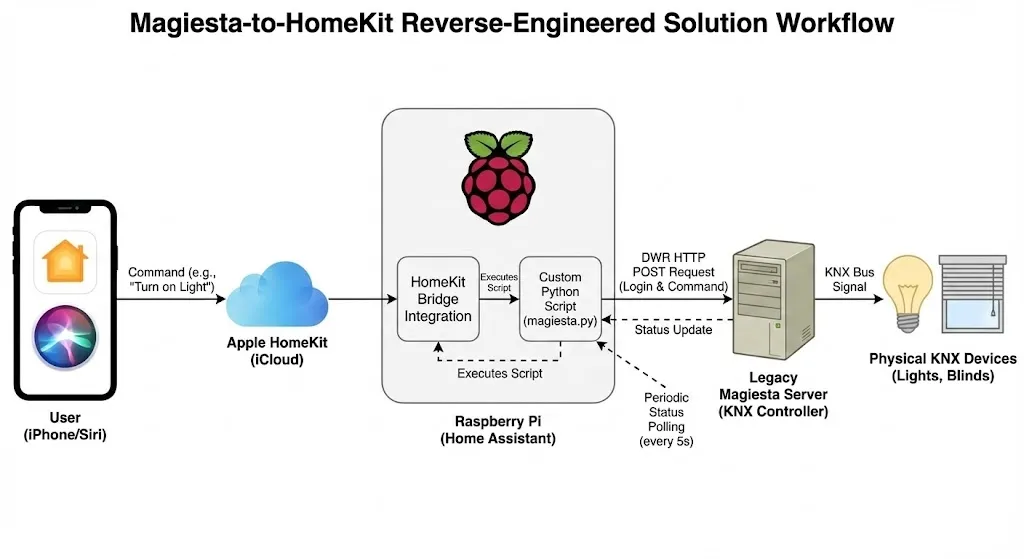
That became magiesta.py. It logs in, maps the house, and prints every device’s status in a format Home Assistant can read. Home Assistant is the open-source software I used as a bridge to Apple HomeKit.
Running it 24/7
The first attempt was Home Assistant on my Mac Mini, using virtualization. It was a disaster of driver issues and boot loops. I realized I was overcomplicating it.
I remembered I had a spare Raspberry Pi collecting dust in a drawer. I flashed Home Assistant OS onto an SD card, plugged it into the router, and walked away. Ten minutes later, I had a server running. No drivers, no VMs, just a box in the cupboard.
Brain and hands in Home Assistant
I didn’t use a standard Home Assistant integration because none existed for this 15-year-old system. I built my own in YAML, a Brain and Hands setup.
The brain
I set up a single command_line sensor that runs my Python script every 5 seconds. That’s the brain. It dumps the status of the entire house into one big JSON attribute.
command_line:
  - sensor:
      name: "Magiesta House Status"
      command: "python3 /config/magiesta.py"
      scan_interval: 5
      json_attributes:
        - data # The entire house status lives here
The hands
Then I created template switches for each light. They don’t poll the network. They read the brain sensor. That keeps the old server from getting overloaded with requests, and the switches stay fast.
switch:
  - platform: template
    switches:
      living_room_light:
        # Check the 'Brain' sensor to see if this light is ON
        value_template: "{{ state_attr('sensor.magiesta_house_status', 'data')['4092deba-b26b...'] == 'ON' }}"
        # Send the command to turn it on/off
        turn_on:
          service: shell_command.magiesta_cmd
          data: { cmd: "ON", uuid: "4092deba-b26b..." }
I hit one last snag with the blinds. I assumed the command was “UP” or “DOWN.” Nothing happened. Another look at the Network tab showed the server wanted the specific words “OPEN” and “CLOSE”. One YAML edit later, and the blinds were moving.
Apple Home
Home Assistant has a native HomeKit Bridge integration.
- I added it.
- I selected the Switch and Cover domains to expose.
- A QR code popped up on the screen.
- I scanned it with my iPhone. Lights, blinds, and thermostats populated in my Apple Home app.
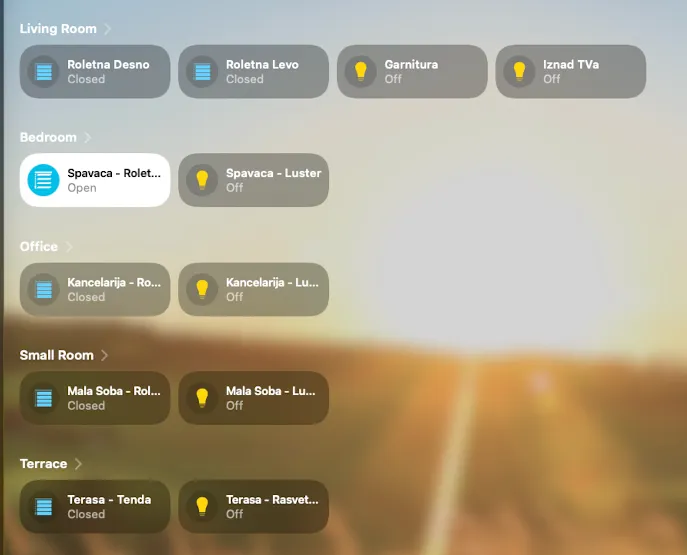
The result
Branko said impossible, or thousands of Euros. I spent €0 and one very satisfying weekend.
Proprietary systems aren’t dead. They’re speaking languages we forgot. Also, don’t trust Branko.